Cette page est publiée en anglais et en ukrainien ; la version anglaise figure ci-dessous.
The Shukai panel: where you set up and configure the assistant
In the Shukai panel, without code: the admin area where you set the assistant up and change it — what it knows, how it answers, what visitors see — and in what order.
The panel is where you set the assistant up and watch how it does. Everything here is done with forms and switches — no code. The only line of code is the script tag you paste into your site at the end, and the panel gives it to you ready to copy.
A site, and what is inside it
Each site is a separate assistant: its own pages to answer from, its own way of talking, its own look. Your account can hold several — how many depends on your plan.
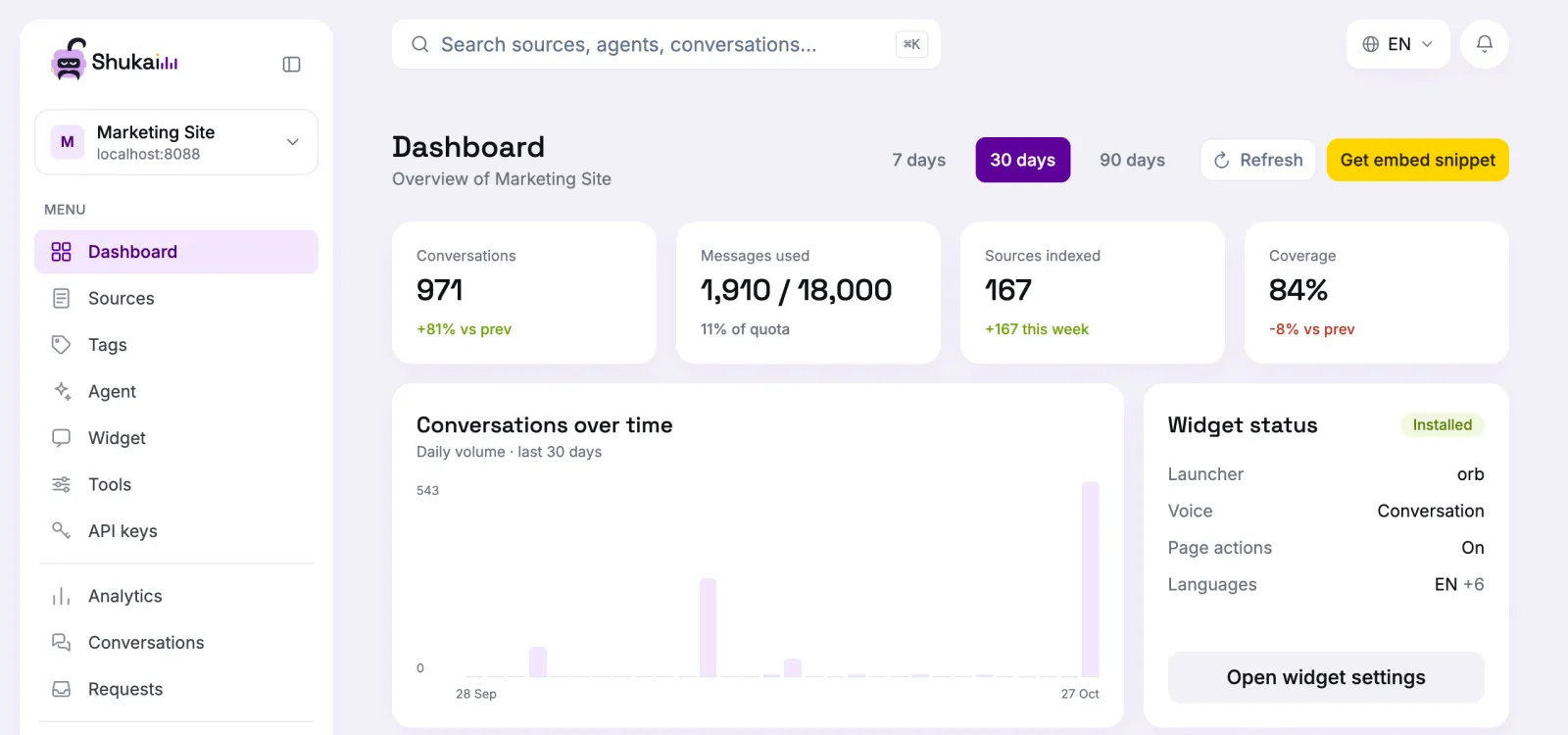
Inside a site, the left menu starts with the Dashboard — how the site is doing at a glance and what to do next — and then has two groups:
- What the assistant is: Sources — what it knows. Agent — how it answers: its role, tone, greeting, model, and how it hands people over to you. Widget — what visitors see: the colours, the character, the button, the voice, what it may do on the page. Plus Tags, Tools (Tools and events) and API keys for when you need them.
- How it is doing: Analytics, Conversations and Requests — whether it finds answers, what people asked, and the contacts they left for you.
Settings at the bottom holds the site itself: its name and address, its languages, its sitemaps, the Support inbox that contact requests are emailed to, and Auto-tagging.
Above the sites sits your account: the list of Sites, Plan & billing, your profile and notifications.
The order that gets you live
- Add a site. Give its name and address and let the panel set it up: it reads your pages, picks up your brand colour and languages, and builds the first agent and widget. Creating a site.
- Check what it knows. The pages it read are on Sources. Add what is missing — a page, a PDF, a few lines of text. Sources.
- Give it a voice. On Agent, say who it is and what it should and should not do. Agent.
- Make it look like you. On Widget, set the colours and the character, and try it in the live preview beside the form. Widget.
- Put it on your site. Copy the script from the widget’s Install tab into your pages. To answer real visitors it needs a plan; building and trying it is free. Plan & billing.
Then watch it: Conversations and analytics show what people ask and what the assistant could not answer, and Requests collects the contacts of people who wanted a person.
The assistant in the panel
The panel has its own assistant in the corner — the same one you are setting up for your site, working on our screens. Ask it where a setting is, or ask it to change one: it opens the right screen, fills in the fields and asks before it presses Save. On some screens it speaks up by itself when it notices something — a page that failed to process, questions nobody could answer.
Nothing is lost by changing your mind
Everything the setup filled in is a first version. Every field is edited later on its own screen, and changes reach your site on the next page load — there is nothing to publish.