Sources: the pages and files the assistant answers from
In the Shukai panel, without code: what the assistant knows — the pages, files and text it answers from, how they get in, and why a missing page is a question it will not guess at.
A source is one piece of what the assistant knows: a page of your site, a document, a few lines you wrote. The assistant answers only from its sources. Anything missing here is a question it says it cannot answer — and offers a person instead — rather than one it makes up.
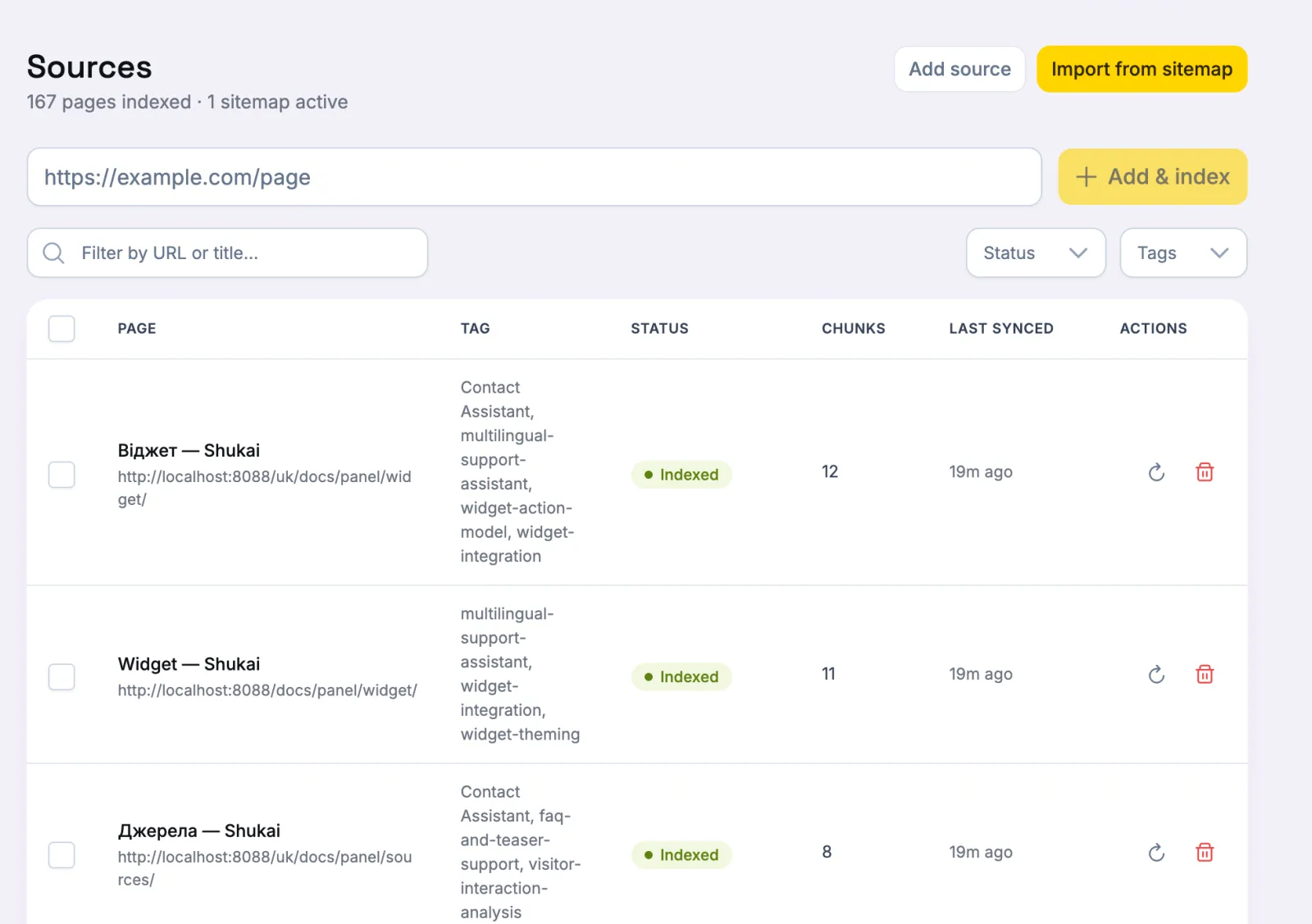
Adding a source
Add source offers four kinds. The choice is only about where the text comes from:
- Link — a web page, or a link to a PDF or Word (.docx) file. The panel fetches it and works out which it is.
- Upload — a file from your computer: PDF, Word (.docx), HTML, plain text (.txt) or Markdown (.md), up to 20 MB. An old Word .doc file cannot be read — save it as .docx or PDF first.
- Text — something you type in yourself: an answer the site does not spell out, a policy, a price list.
- App screen — a screen of your own application that sits behind a login and cannot be fetched. You give it a Screen name, its Screen address and What is on this screen, and the assistant then knows when a person is on that screen and can take them there.
Add & index reads it straight away; Add without indexing only adds it, for later.
Many pages at once
Import from sitemap adds every page your sitemap lists and skips the ones you already have. It reads the sitemaps saved in the site’s Settings, so add yours there first. Pages beyond your plan’s page limit are not added, and the import says how many were left out. Tick several rows to Process selected or Delete selected at once; the progress is shown live.
When a source is ready
A source moves from Not indexed through Processing to Indexed. Only then can the assistant answer from it. Editing a source does not read it again by itself — press Reprocess after a change.
If processing fails, the source shows Failed with the reason, and keeps what it had before, so the assistant goes on answering from the last good version while you fix the problem.
Title, description and additional text
The Title and Description of a web page are taken from the page itself. Type your own to keep them; clear the field to hand it back to the page. They are more than a label: the assistant searches by them, so a description that says what the page is about, in your visitors’ words, helps the right page come up first. Reprocess the source after changing them.
Additional text is anything the page itself does not say. It works on every kind of source, so you can add a note to a fetched page instead of creating a second source for it.
For applications
For applications stays closed unless you open it, and a content site needs none of it. It is for an app with its own screens: which screens a source explains, how a screen can be filtered, which of your tools and events are available on it, and Proactive analysis — a check of your own that lets the assistant speak up on that screen when it notices something. The details are in the developer’s guide: App screens.