Cette page est publiée en anglais et en ukrainien ; la version anglaise figure ci-dessous.
Adding a site: setup from one address
In the Shukai panel, without code: one address is enough — the panel reads your site and builds the first sources, agent and widget, or you start empty and do it by hand.
A new site starts from Add site on your list of sites. You give Your website and, if you like, a Site name, and choose how to begin.
Set it up for me, or start empty
Set it up for me reads your site — about thirty seconds — and fills in a first version of everything. Start empty creates a blank site, and you add the pages, the agent and the widget yourself.
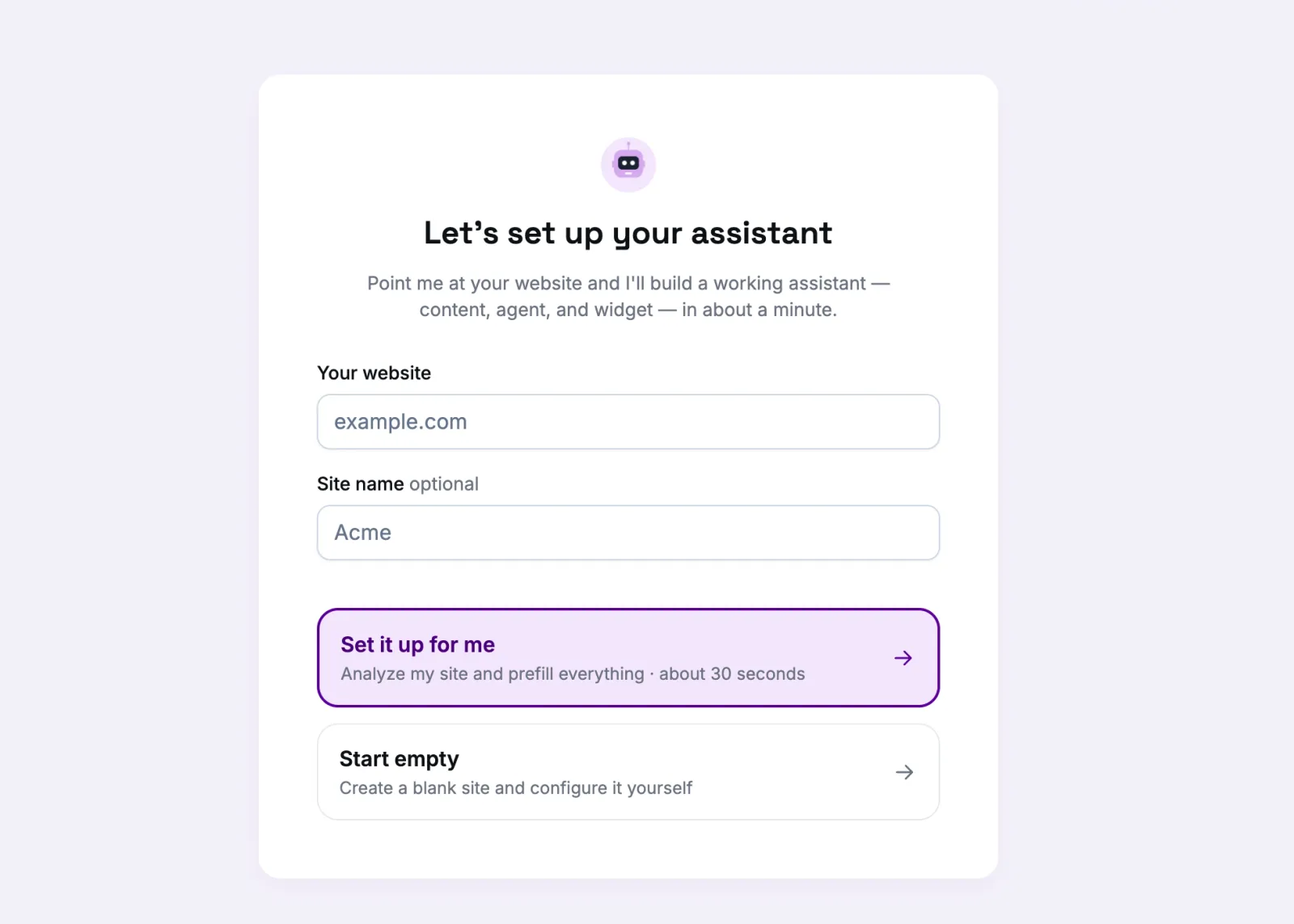
Neither choice locks you in. Whatever the setup fills in is edited later on the site’s own screens.
What the setup found
Before it builds anything, the panel shows Here’s what I found on your site:
- Pages found — the pages it will read. It takes them from your sitemap, or follows the links of your home page when there is none. If you pasted the address of one page rather than the whole site, Just this page reads only that one; Scan the whole site switches back.
- Brand colors — the colours it picked up from your pages. The first one becomes the widget’s main colour; pick another if it is wrong.
- Primary language and Supported languages — the language your pages are written in, and the languages your visitors speak. The assistant answers each visitor in their own language either way; these decide which languages get a greeting and suggestions written in advance.
Looks right — build it starts the build.
While it builds
You land on the new site’s dashboard, and the build runs there: Configuring the site, Adding content sources, Indexing content, Building the assistant, Creating the widget, Generating the install key. It usually takes about a minute. You can move around the panel meanwhile — the pages go on being read in the background.
At the end you get the line to paste into your site, before </body> on every page where the
assistant should appear. You will also find it later on the widget’s Install tab.
If something did not work
- No pages were found — the assistant has nothing to answer from yet. Add pages on Sources.
- Only part of the pages added — the panel says how many: your plan’s page limit was reached. The rest can be added after you move to a bigger plan.
- Setup didn’t finish — the panel names the step that failed, and the site is still created. Open its dashboard and finish what is missing by hand on the site’s own screens.