Questa pagina è pubblicata in inglese e in ucraino; qui sotto c’è la versione inglese.
Agent: how the assistant behaves
In the Shukai panel, without code: how to set up the assistant and change how it behaves — who it is, what it must and must not do, its model and greeting, how it hands people to you, and when it opens a page.
The agent is the assistant’s character and rules; the widget is how it looks. One agent can answer in several widgets. The screen is a set of cards, and Save changes at the top keeps them all.
Who it is
Who is your assistant? holds its Name, Role, Tone (Friendly, Professional, Playful, Concise) and What should it focus on?. Do & don’t are two short lists of rules. Name the actual product or service you sell, not an industry: the assistant talks about what you write here.
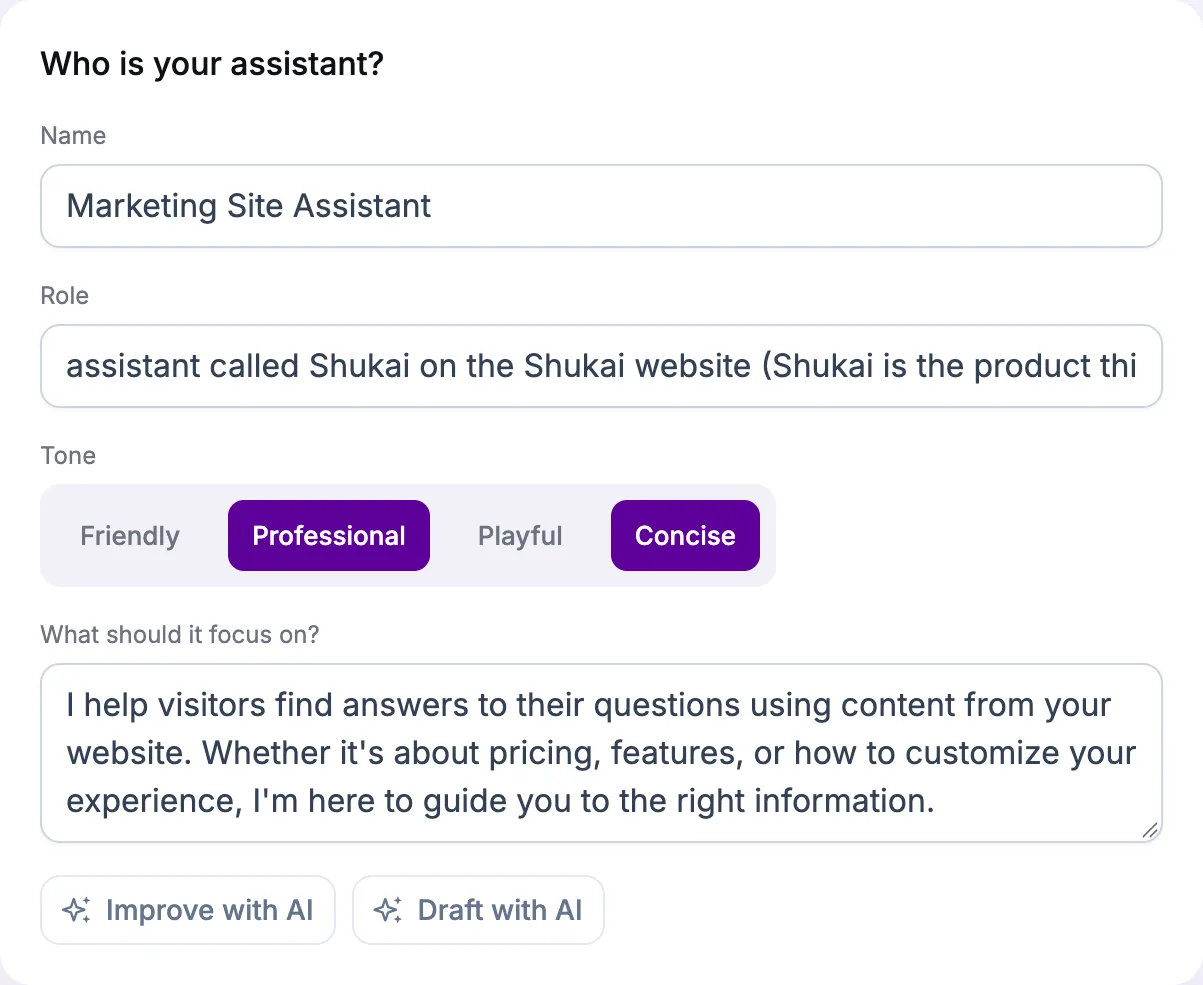
Draft with AI writes a first version from what your site says; Improve with AI polishes the one you have. Both only fill the fields — nothing is kept until you save.
System prompt — live shows the exact instructions the assistant will get. The rules that keep it to your content are always added, whatever you write — they are not yours to switch off.
Model and greeting
Model picks which model answers. We provide it and pay for it, so there is no key to enter. Beside each model is what one answer costs in credits; a spoken answer costs a little more. Creativity, for the models that have it, moves between Precise and Creative.
Greeting is the first line of a new conversation. A widget can have its own greeting on its Content tab, and that one wins.
Languages is only a note: the assistant answers each visitor in their language, and which languages the site has is set in the site’s Settings.
Reaching a human
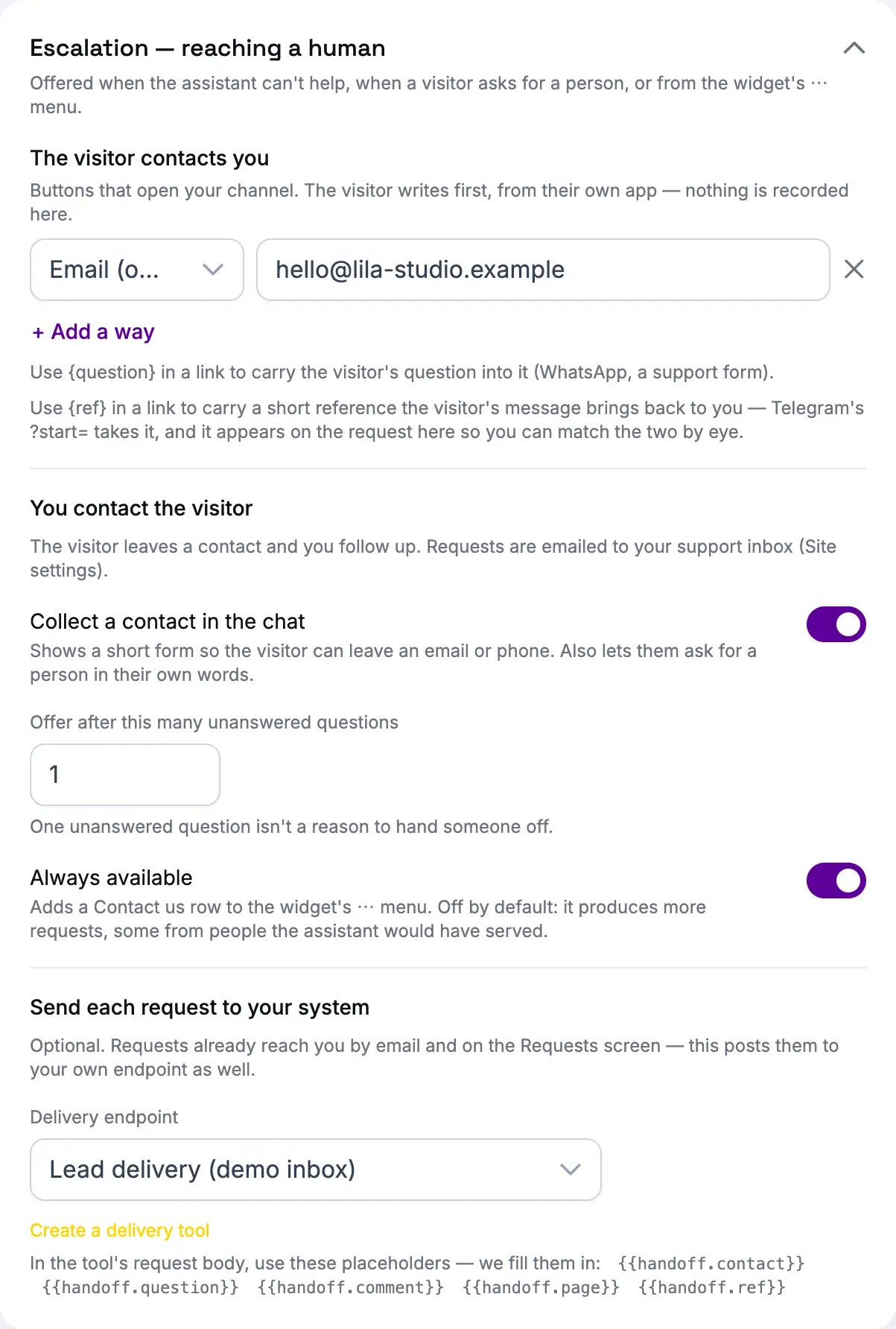
Escalation — reaching a human decides how a visitor gets to a person. It is closed until you open it:
- The visitor contacts you — links and email addresses shown as buttons: a WhatsApp or Telegram link, a contact page, your support address. Offer several at once if you like.
- You contact the visitor — Collect a contact in the chat shows a short form inside the conversation. A new agent starts with it on, so there is always a way to a person. What people leave there arrives on Requests and by email.
- Offer after this many unanswered questions — how many times the assistant may come up empty before it offers a person by itself. While the form is on, a visitor who asks for a person is offered one at once.
- Always available — keeps Contact us beside the launcher at all times, not only when the assistant offers it.
- Send each request to your system — passes each request on to your CRM or help desk as well, through a delivery tool you set up on Tools (Tools and events). It works with the contact form on, and comes with the Growth plan and above.
Opening pages
Navigation behaviour is about one thing: what the assistant does when a page of your site answers the question better than a sentence would. One choice, three options:
- Answer and show a link — it answers, and shows the page as a link to open.
- Offer to go — on a strong match it asks first, and opens the page once the visitor agrees. A new agent starts with this.
- Take them there — on a strong match it opens the page straight away, with one short line.
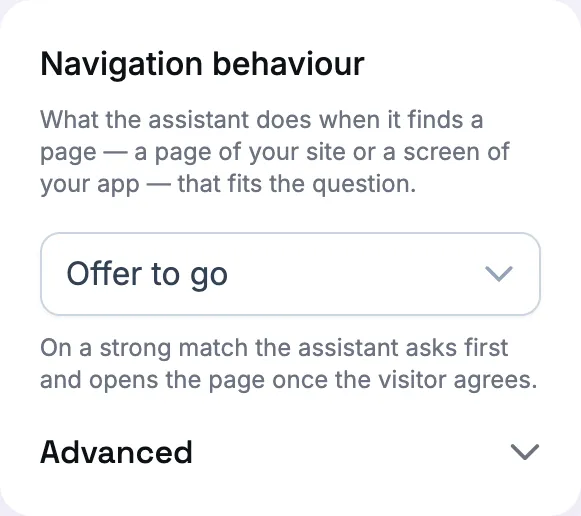
Whichever you pick, a visitor who asks to be taken somewhere — “open pricing” — is taken there at once. The card’s own Advanced sets the tone of those short lines and how strong a match must be.
The page itself is opened by the widget, so a visitor is moved only while the widget’s Navigate for the visitor is on (its Page actions tab). An agent that guides people around the screens of an app opens them its own way, and the card says so.
This is not about pressing buttons on a page. Whether the assistant asks before it presses Save is set on the widget, under Page actions.
Advanced
Advanced holds two things. Restrict to tags (fixed) limits the agent to the sources that carry those tags — useful when one site serves two audiences. System prompt (raw) replaces the builder above with your own text; Resume builder brings the builder back.