Esta página se publica en inglés y en ucraniano; abajo está la versión en inglés.
Shukai widget settings: look, greeting, voice and page actions
In the Shukai panel, without code: how to set up and change the widget — what visitors see and what the assistant may do on your page: colours and character, the button, the greeting and suggestions, the voice, page actions, and the line you paste into your site.
The widget is what visitors see: the character in the corner, the bubbles beside it, the text field. A site can have several widgets — a different look or behaviour on different pages — and each one answers with the agent you choose. The settings are in six tabs, and the live preview beside them shows every change before you Save.
Appearance
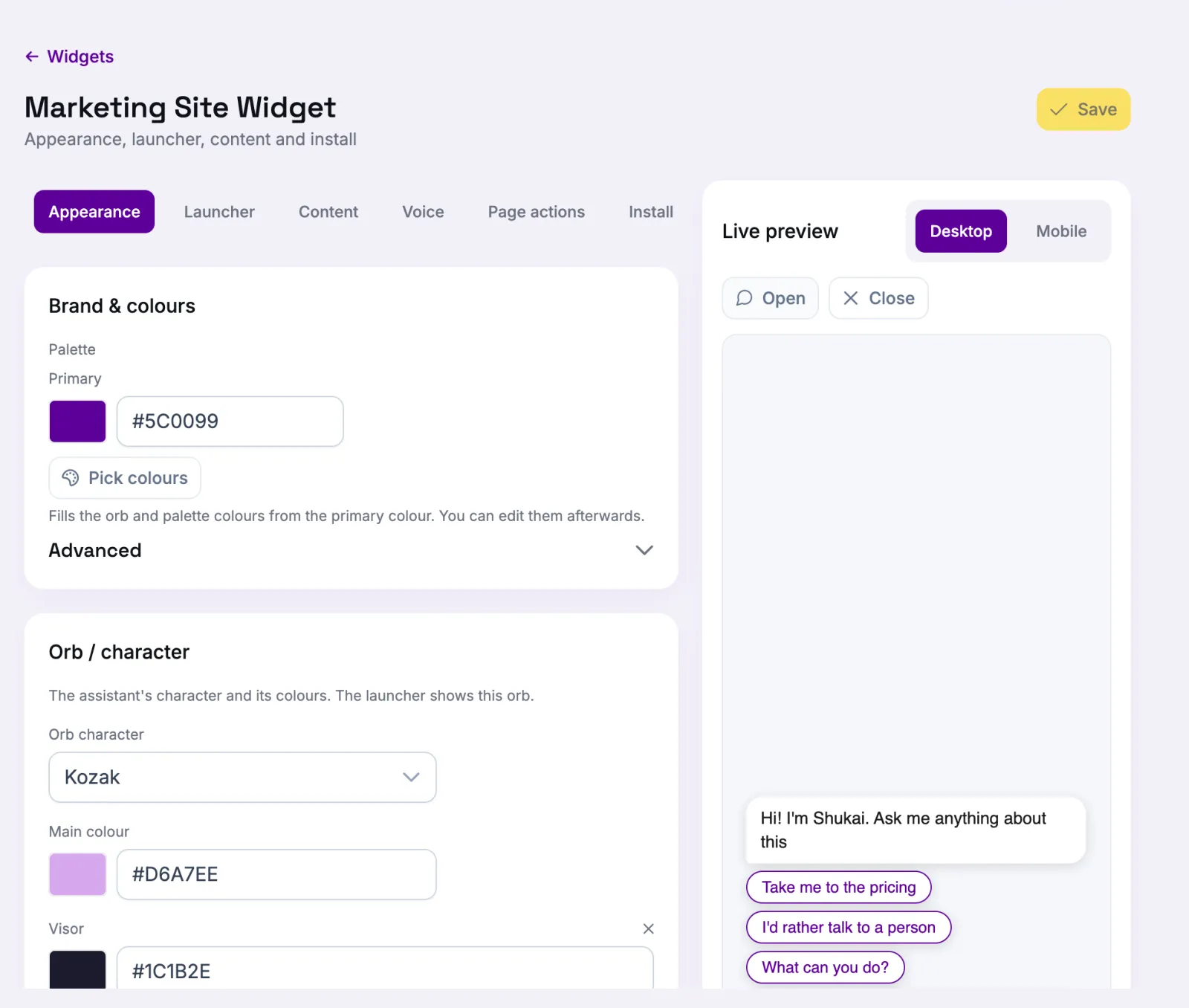
- Brand & colours — the Primary colour, and Pick colours under it: it builds a palette from that colour and fills the orb’s colours and the palette’s Accent, Background and Text in one go. It overwrites those fields, so pick first and adjust after. Under Advanced you can set Accent, Background and Text by hand.
- Orb / character — which character the assistant is (Robot 2.0, Kozak, Fox, Monster or Microphone), its Main colour, and one colour per part of that character. A part left blank keeps the character’s own colour; a part marked Follows the main colour takes its colour from the main one, so the face always stands out from the body.
- Message bubbles — how round the corners of the bubbles are.
Launcher
The button that opens the assistant. Launcher type is the animated character, an Image you upload (PNG, JPEG, WEBP, GIF or SVG, up to 512 KB), or None (headless) when your page has its own button. Then its Position, Container, Button size, Corner radius, and for an image a Button label beside the graphic with its Label colour.
Launcher attention is how the closed button draws the eye: Subtle and Prominent move it and, a few seconds after the page loads, show the greeting in a bubble above it; Off does neither.
Content
- Agent — which agent answers in this widget.
- Greeting — this widget’s own first line. Leave it blank to use the agent’s.
- Say it is an AI assistant — shows «AI assistant» above the text field.
- FAQ suggestion chips — questions a visitor can press instead of typing; the first three are shown under the greeting.
The greeting and the chips are written per language. A language you leave empty is translated from the one you wrote; fill a language by hand only where the exact words matter.
Voice
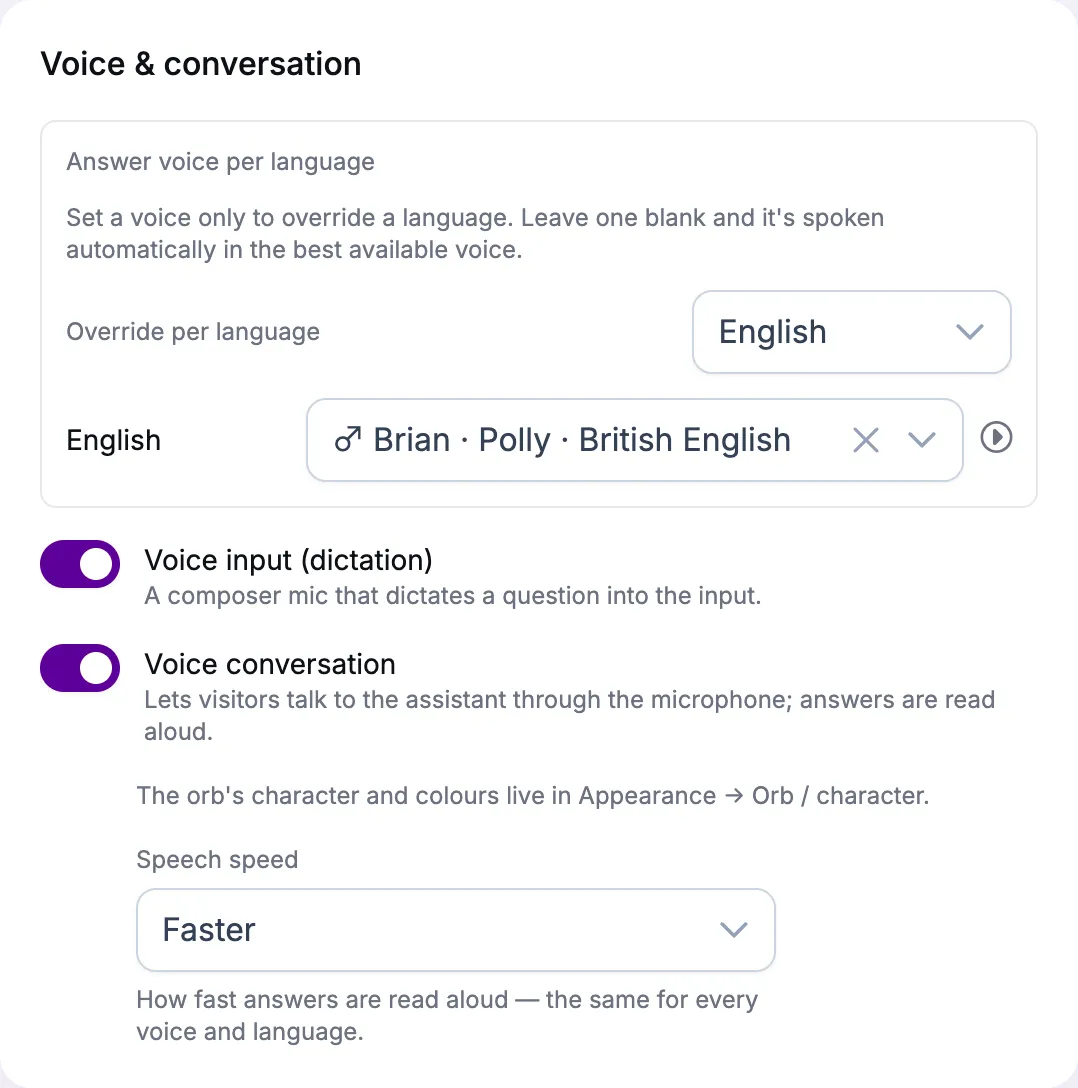
Answer voice per language picks the voice for each language, with a sample to listen to; a language you do not set still gets a fitting voice. Speech speed — Slower, Normal, Faster or Fastest — sets how fast answers are read aloud, the same for every voice. Voice conversation lets a visitor talk to the assistant through the mic beside the character, and Voice input (dictation) puts a mic in the text field for dictating a question. The two are independent.
Page actions
Whether the assistant may change something on your page, and when it asks you first.
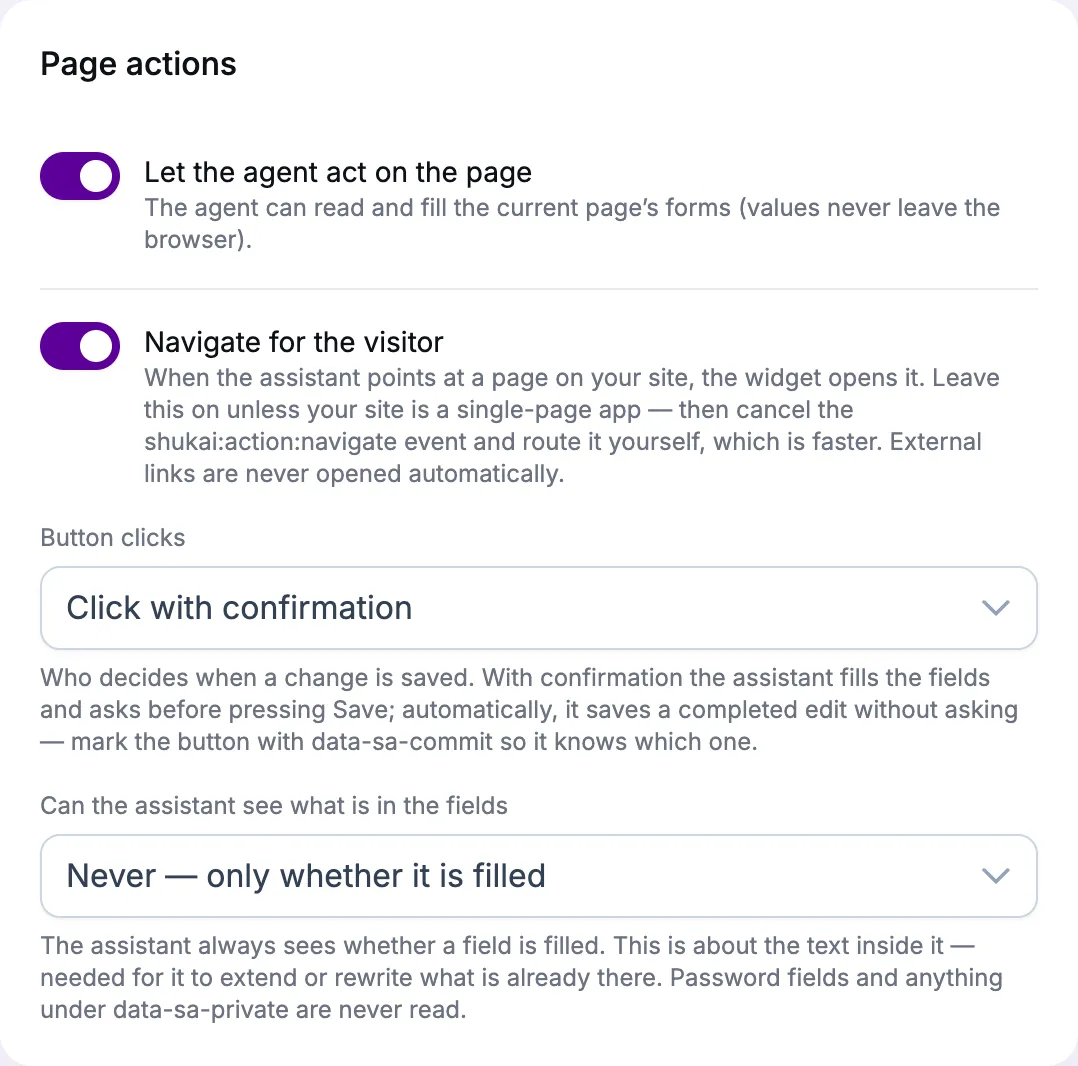
- Let the agent act on the page — fill in forms, choose options, press buttons. This switch and Button clicks come with the Growth plan and above.
- Navigate for the visitor — open a page itself rather than only suggest it.
- Button clicks — Fill only (never click), Click with confirmation (it fills the fields, then asks once before pressing Save) or Save automatically.
- Can the assistant see what is in the fields — Never — only whether it is filled, Only fields marked data-sa-read, or Every field on the page.
How to mark up a form so it works well is in the developer’s guide: Page actions.
Install
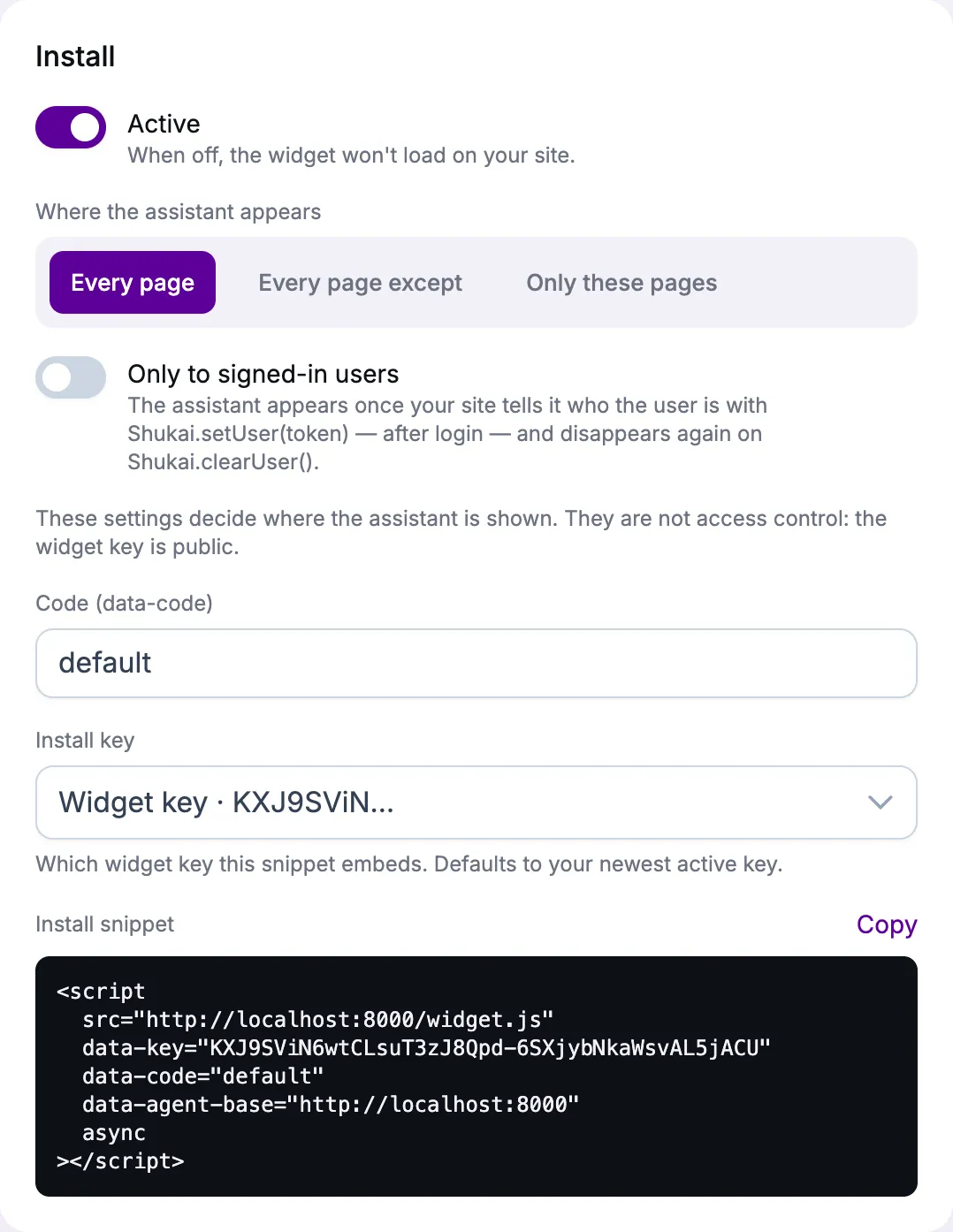
- Active — the widget’s switch. Off, the widget no longer appears on your site and the assistant stops answering at once, the preview included; a page that is already open keeps the button until it is reloaded, but its questions get no answer. Nothing is deleted: switched back on, the widget returns with the next page load, with its settings and conversations. It is the quickest way to take the assistant off your site for a while — for instance while you look into credits going faster than you expect.
- Where the assistant appears — Every page, Every page except or Only these pages, one page per line, plus Only to signed-in users. This decides where it is shown, not who may talk to it.
- Code (data-code) — this widget’s own name; the line you paste carries it, so the page loads this widget and not another of the site’s.
- Install snippet — the line to paste into your site, with Copy. It uses the widget key chosen under Install key; Create widget key makes one if there is none.
Changes reach your site on the next page load; there is nothing to publish.